



Create Edit
Change a photo with words
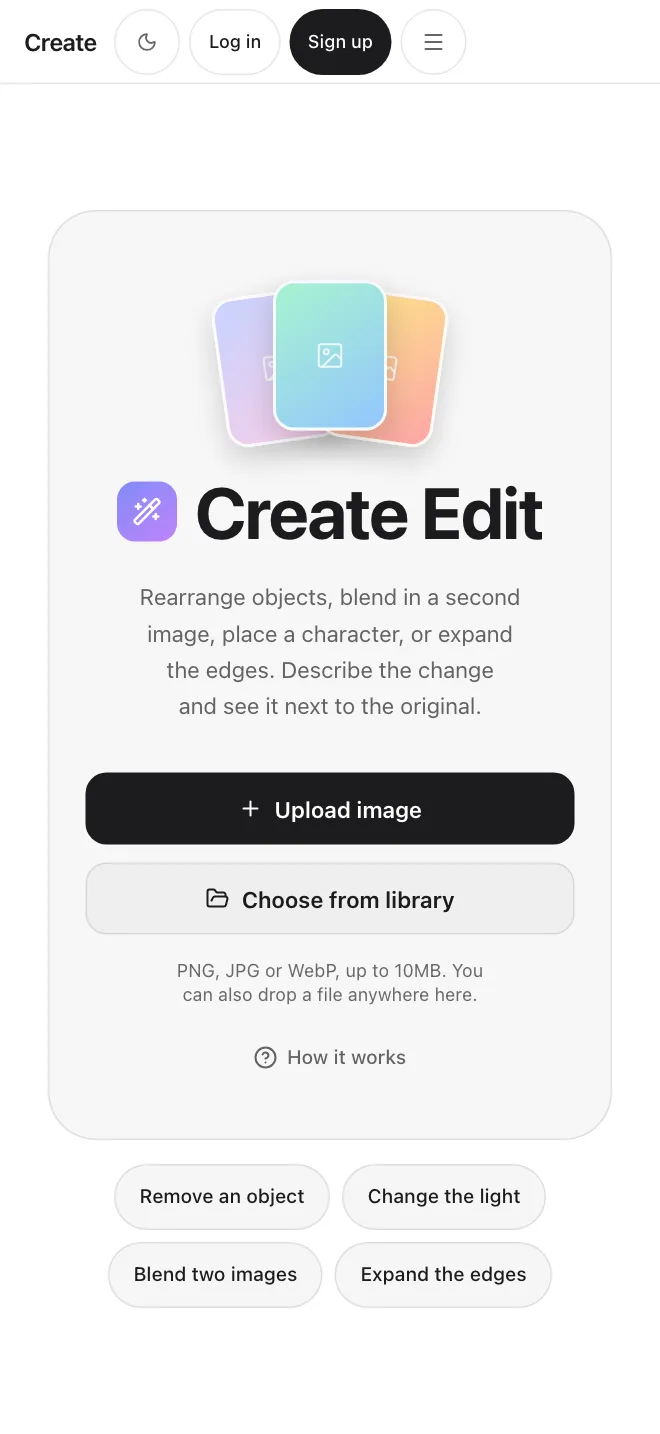
Upload a photo and describe the change. Rearrange objects, blend in a second image, place a character, expand the edges, remove the background, or relight the scene, then compare the result with your original.
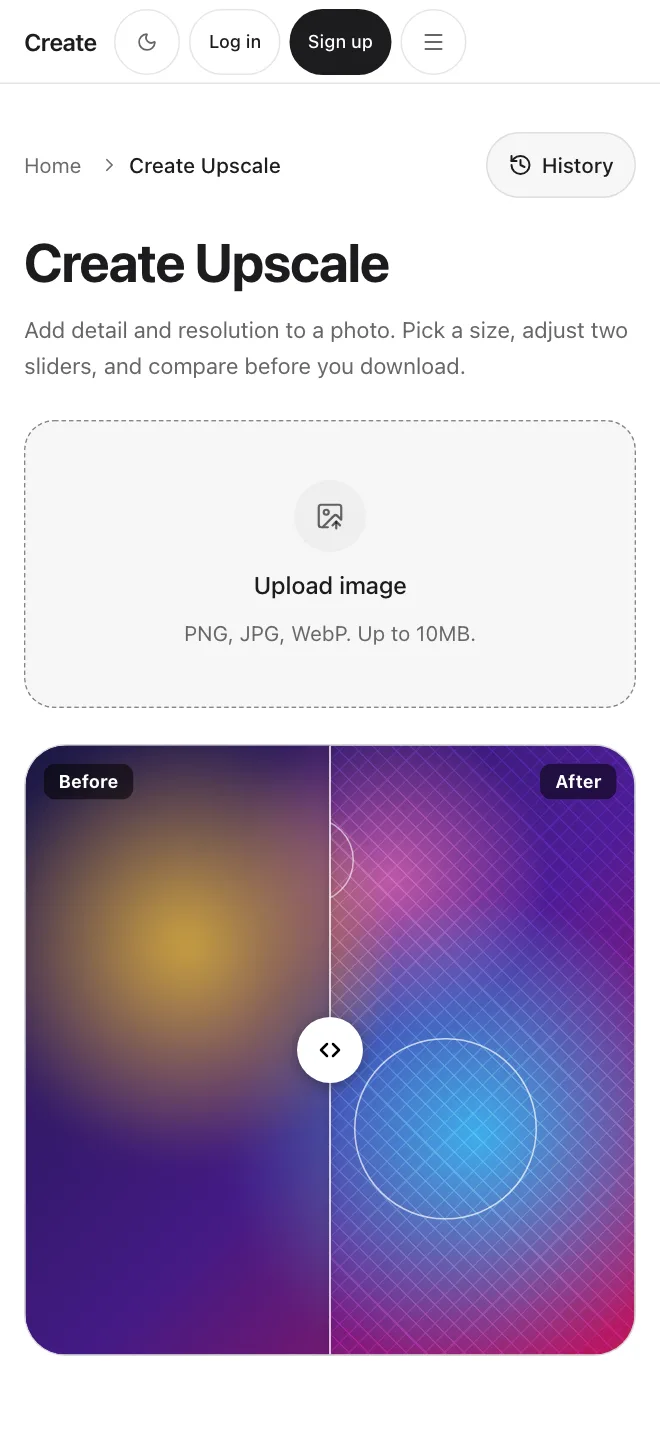
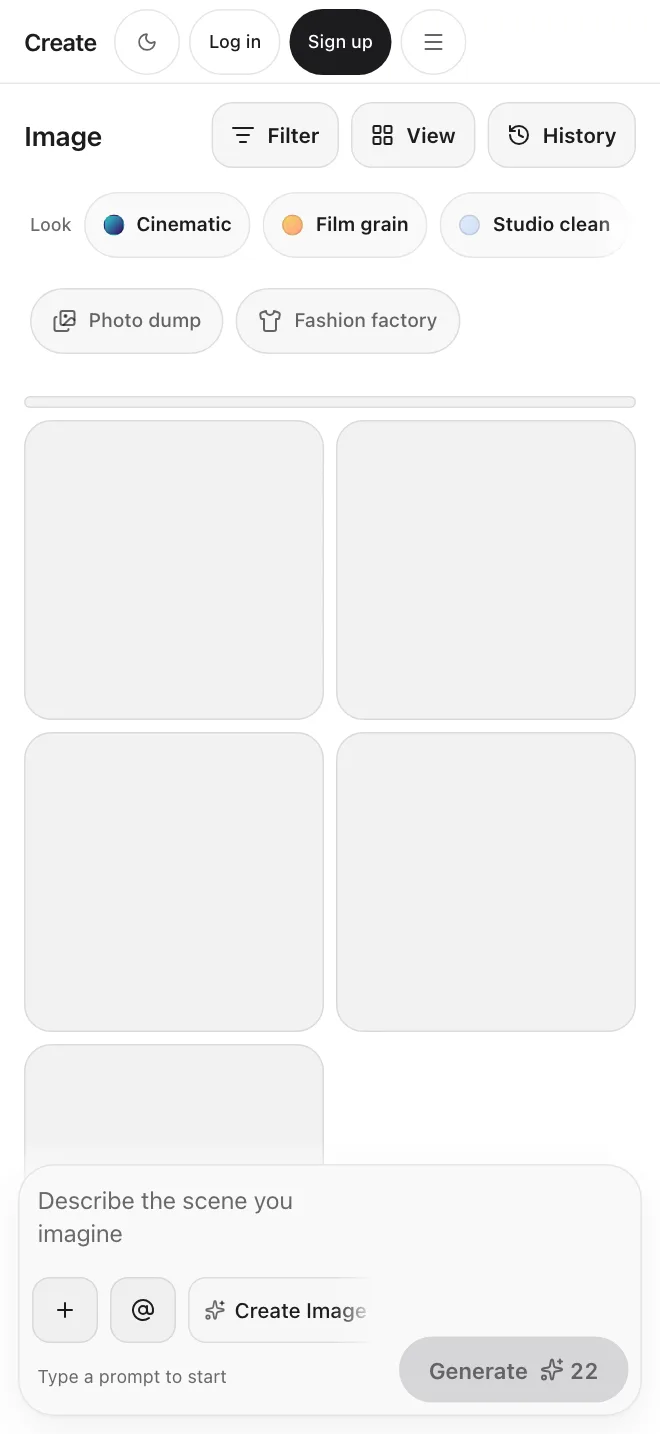
Screens from the app
Prompt ideas to try
Copy a prompt, upload your own photo and see the change next to the original.
Rearrange · Interiors
Move the armchair to the opposite corner and keep everything else the same
Blend · Portraits
Blend the jacket from the second image into the first image so it looks natural
Character · Composition
Place the person from the second image into the scene, standing on the left
Expand · Wide crop
Extend the scene past the edges and keep the same style
Rearrange · Cleanup
Remove the lamp and fill the space naturally
Relight · Mood
Relight the scene with soft, warm light
Edit with a prompt, or add a second image
Describe the change you want, or add one extra image to bring something into your photo.
Edit with words
Upload a photo and describe the change in plain English, like moving an object, removing something, or relighting the scene. Create Edit applies it to your image.
Add a second image
Add one extra image, such as a person or an object, then describe how it should join the first photo. Blending works best with models that accept two images.
Ready-made starting prompts
What you can ask Create Edit to do
Each one fills in a prompt you can change. Pick one, edit the words in brackets, and generate.
Rearrange objects
Ask for an object to move, or to be removed, and say what should stay the same.
Fills in the prompt for youBlend from another image
Bring an object from a second image into your first photo.
Fills in the prompt for youPlace a character
Add the person from a second image into a new scene.
Fills in the prompt for youExpand edges
Extend the scene past the edges for a wider shape, in the same style.
Fills in the prompt for youRemove background
Ask for the background to be taken away.
Fills in the prompt for youRelight
Change the light, for example soft and warm.
Fills in the prompt for youYour plan includes commercial use, under our Terms.
Start editingWhat Create Edit does
Rearrange, blend, place a character, expand, clean up and relight, all from a written description.
Move things without starting over
Rearrange objects
Describe the move and ask for everything else to stay the same. Results depend on the model and the photo, so you can ask for several and pick one.
One extra image
Blend from a second image
Add a second image and describe what to take from it. Blending works best with the models that accept two images.
Put someone in a new scene
Place a character
Add a person from a second image into your scene and say where they should stand.
Pick a canvas shape
Expand the edges
Choose a canvas shape and ask Create Edit to continue the scene past the original edges.
Quick fixes in words
Remove the background or an object
Ask for the background to go, or for one object to be removed and the space filled in.
Change the mood
Relight the scene
Describe the light you want. Then drag the slider to compare your result with the original.
Edits made in words, compared against your original.
Get startedBuilt for every kind of scene
Prompts to start from for interiors, portraits, product shots, mood and wide crops. Results depend on the model and the photo.
Start editingInteriors
“Move the armchair to the opposite corner and keep everything else the same.”
Portraits
“Place the person from the second image into the scene, standing on the left.”
Product
“Remove the cup from the table and fill the space naturally.”
Mood
“Relight the scene with soft, warm light.”
Wide crop
“Extend the scene past the edges and keep the same style.”
Your edits are saved in your Library
Everything you make shows up in your Library and your history, so you can reopen it, mark a favorite, or download it later. Pick an earlier image in Create Edit by choosing it from your Library.
Start creatingSimple to use
What you get when you edit with Create Edit.
Plain words
Most edits need one short sentence. No brush, no layers, no tools to learn.
A second image when you need it
Add one extra image to bring a person or an object into your photo.
Compare before you keep
Ask for up to four results, then drag the slider to compare each one with your original.
Simple plans
Simple credit-based pricing. Upgrade, downgrade, or cancel anytime.
Basic
1,000 credits /month
$10/month
Pro
3,200 credits /month
$30/month
Max
9,000 credits /month
$80/month
Discover even more features
Take your edit further
Download your edit, then add resolution with Create Upscale or use it as the starting image in Create Video.
See Create UpscaleFrequently asked questions
Start creating.