



AI Video Generator
from text or images.
Make short AI clips from a text prompt or a picture. Pick a model, set the shape and length, and turn sound on for models that support it.
Many video models, one workspace.
Go from idea to clip
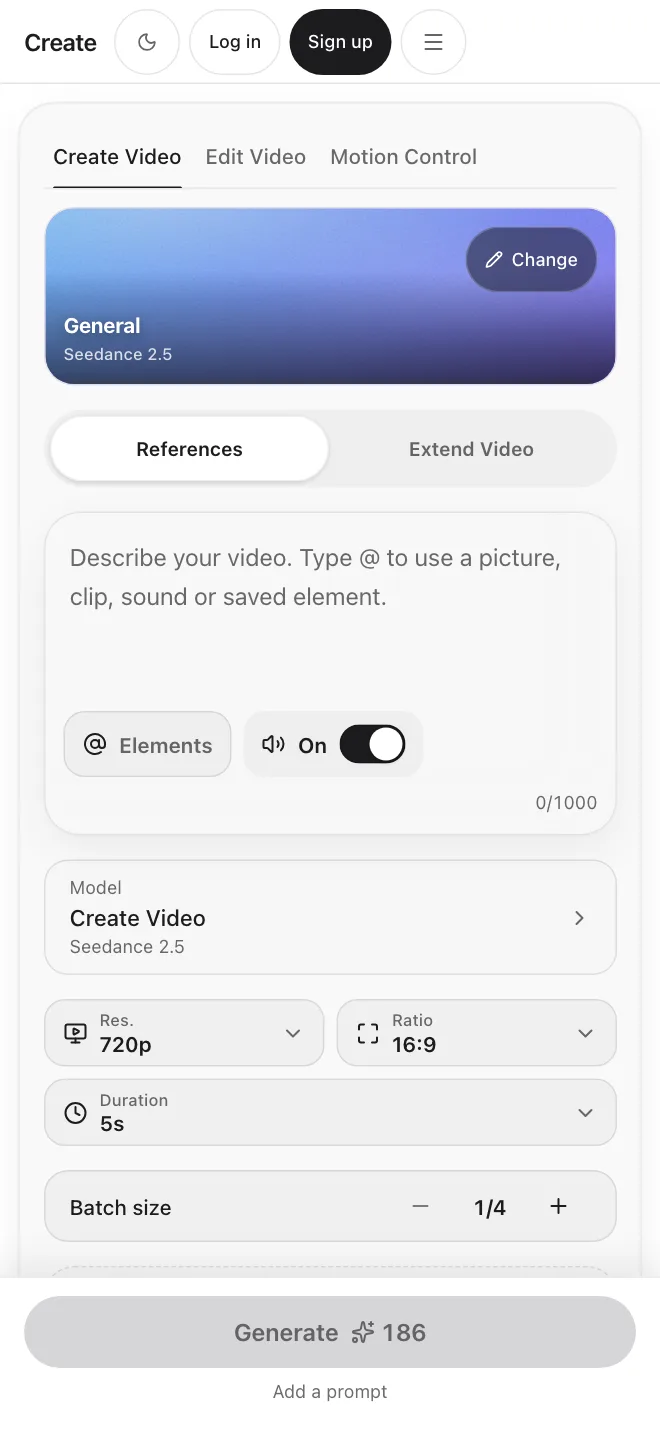
Just like the Image tool, Create Video makes a short clip from a simple text description. By adding a start frame, you can also turn an image into a video. Every paid plan can pick from the full model list in one simple screen.
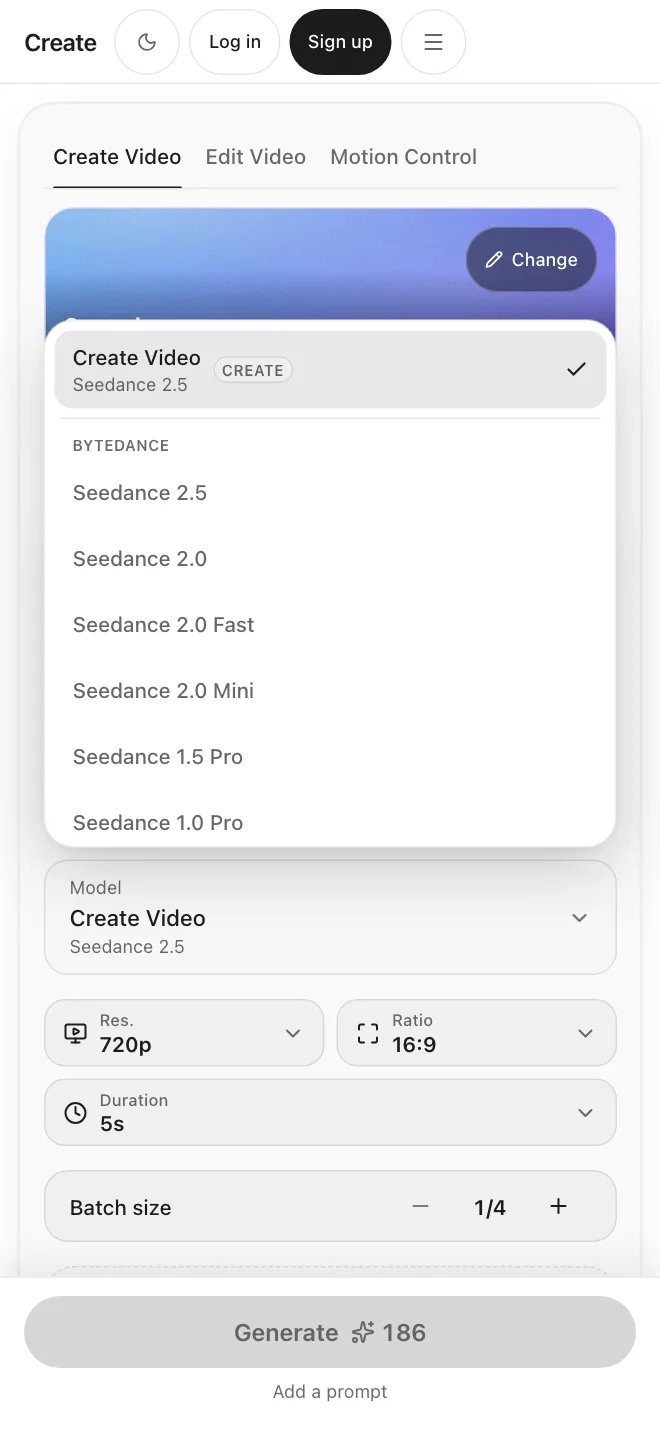
Create Video
Create Video runs on Seedance 2.5. It makes 5, 8, 10 or 15 second clips from text or an image, with sound if you turn it on. Other models in the list offer different lengths and settings.
More ways to shape your vision
Text to video
Describe what you want to see. Create Video makes a short clip from your words.
Image to video
Upload a still image as the start frame, then describe the motion. Only models that take an image can do this, and the model list shows which.
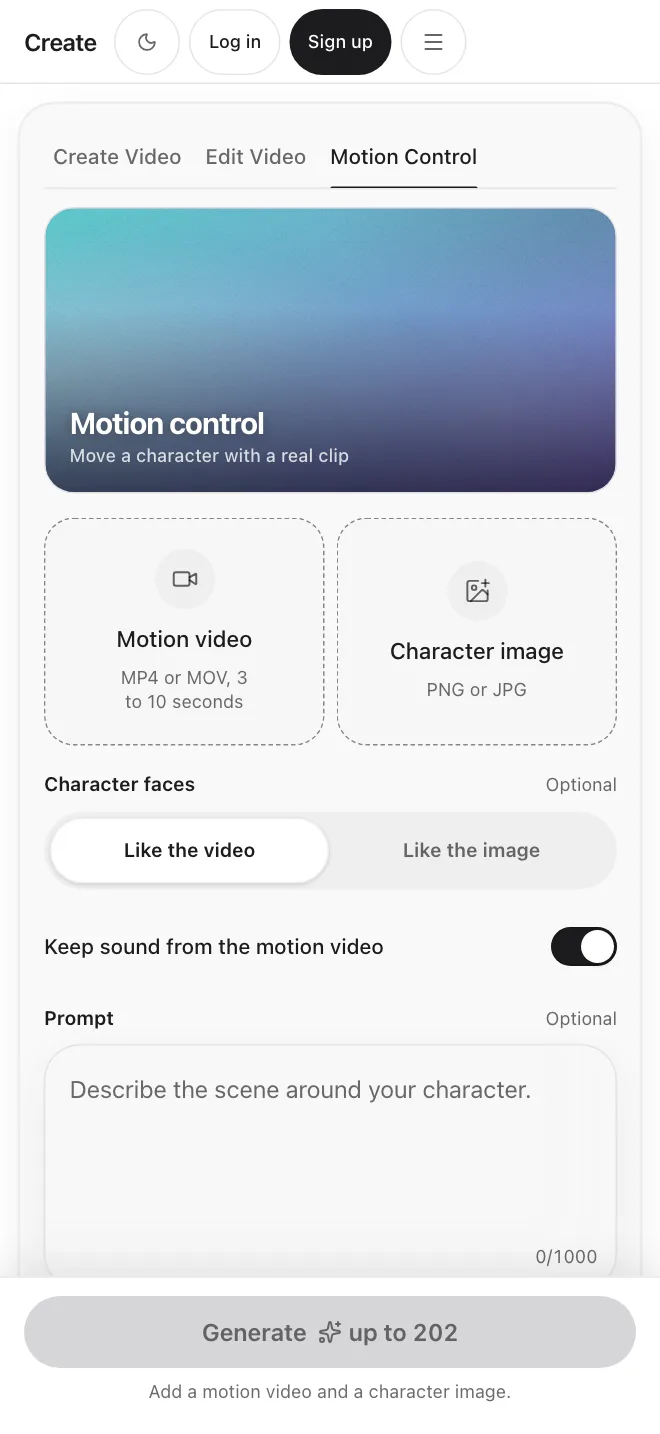
Sound on supported models
Some models make sound along with the video, such as Veo, Seedance 2 and Kling 3.0 and 2.6. A switch turns it on. Other models make silent clips.
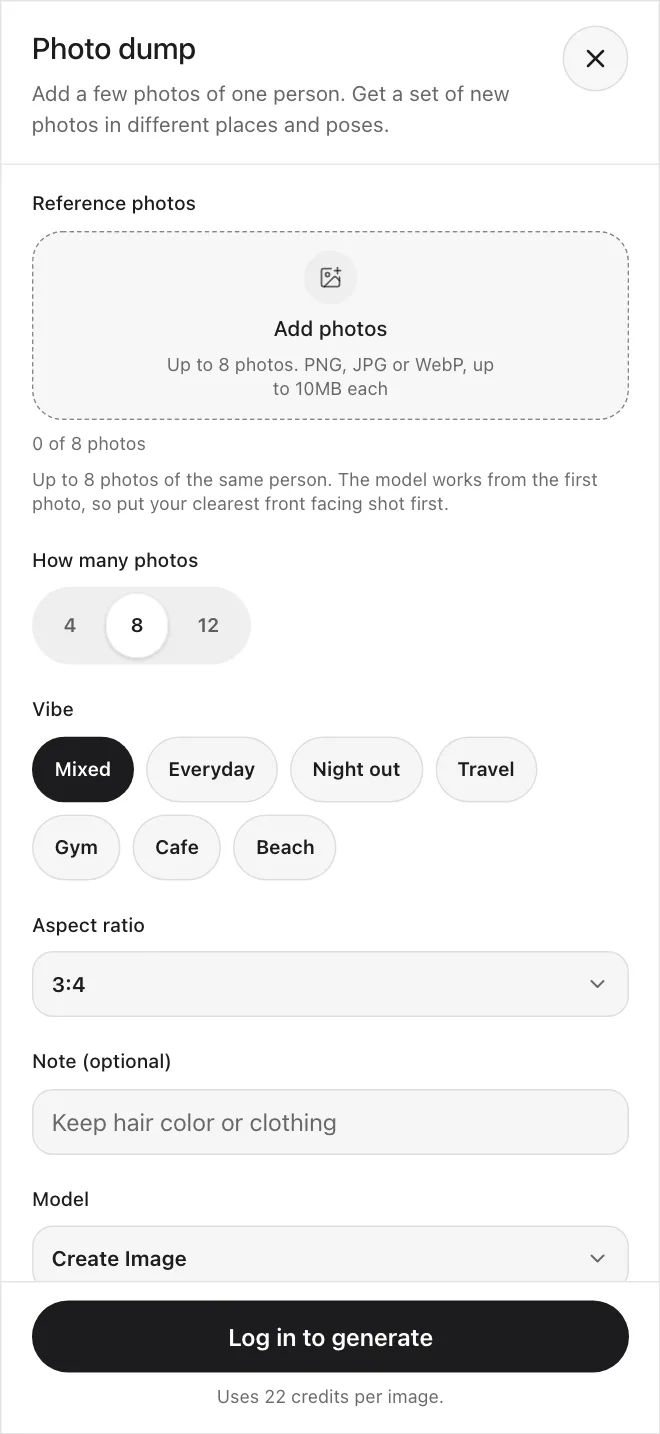
Up to four clips per run
Ask for up to four clips in one run, then try the same prompt on another model to see which suits your shot.
How to create AI video with Create
Four steps from the Video tool to a finished clip.
Open Create Video
Go to the Video tool, pick a model, and set the shape, resolution and length it offers.
Write a focused prompt
Describe the subject, action, setting, camera movement, and lighting. You can also upload an image to use as the start frame.
Generate and compare
Run the same prompt on another model, one at a time, and pick the best version.
Download the clip
Download the clip you like or find it later in your Library.
Try the same prompt on different models
A few of the models in the list, with what the app shows for each. Run the same prompt on more than one and pick the best clip.
Create Video
5, 8, 10 or 15s · sound
Veo 3.1
8s · 720p or 1080p · sound
Kling 3.0
5 or 10s · sound
Wan 3.0
See the model list
Grok Imagine Video
See the model list
Create AI Videos for Every Creative Workflow
Film & Storytelling
Try cinematic shots, scene ideas and visual experiments from a prompt or a picture.
Marketing & Ads
Turn a campaign idea or a product picture into a short clip you can test.
Content Creation
Make short social clips and loops from a text prompt or an image.
Product & Ecommerce
Animate a product picture to get a video idea without a shoot.
Plans for everyone
Basic
$10/month
1,000 credits /month
Pro
$30/month
3,200 credits /month
Max
$80/month
9,000 credits /month
Explore other features
Frequently Asked Questions
Start creating.