



Product photography
for ecommerce
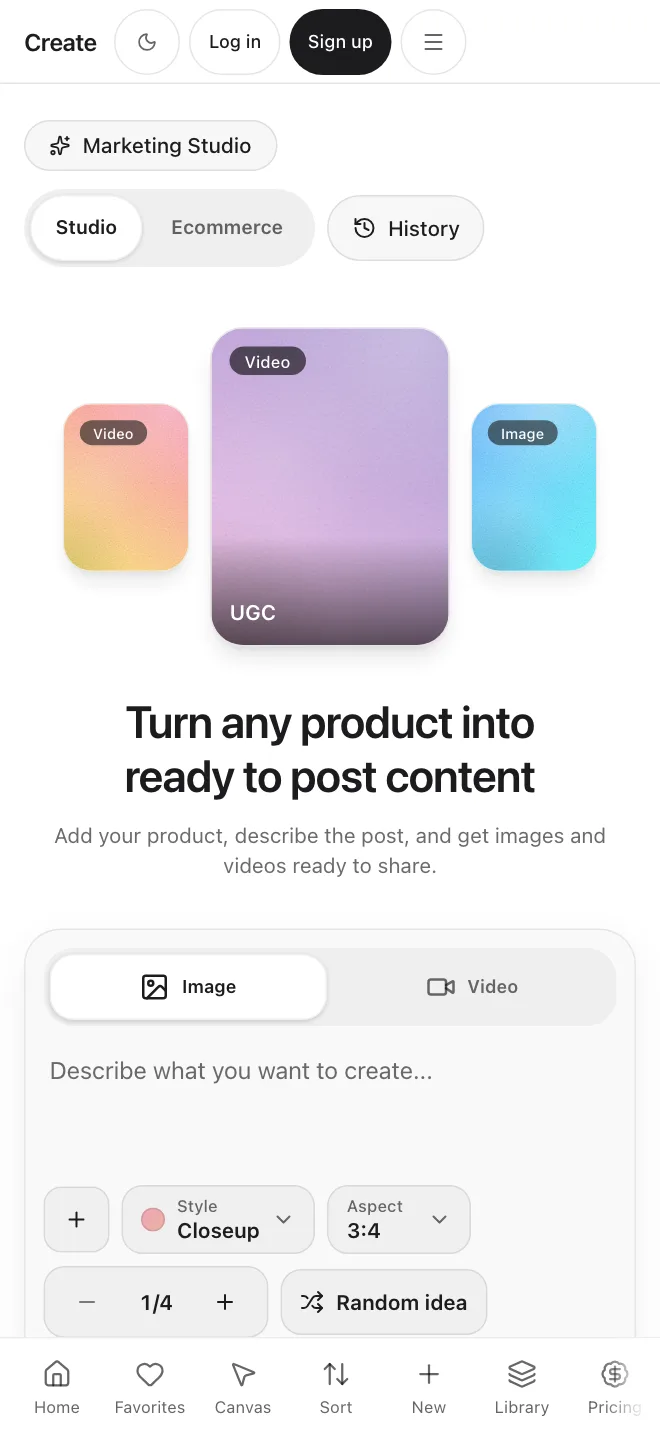
Upload one product photo or describe your product. Pick a scene and a style, then make listing images and short product videos in the Ecommerce view of Marketing Studio.
Start from an example
Marketing Studio has example prompts in four groups: Product shot, Marketplace, Posters and Ads. Pick one to fill the prompt box, then change the words to fit your product.
Make product photos from words or from a photo
Describe the picture, upload one product photo, or do both. If you upload a photo and leave the prompt empty, the studio uses the scene you picked.
From a description
Write the picture you want, such as a mug on a wooden table. Then pick a scene, a style and an aspect ratio. You can make up to four results at once.
“A glass perfume bottle on marble with warm window light”
Create from wordsFrom a product photo
Upload one product photo (PNG, JPG or WebP, up to 10 MB), then describe the scene around it. Models use one image, so keep to a single clear photo.
“Put this product on a marble counter in soft window light”
Create from a photoWhat you can set
Every setting, in one place
Choose a scene, a style, a person, a size and a shape, then write a short prompt. The Ecommerce view keeps them together next to the prompt box.
Scene
Studio white, Wood table, Kitchen, Outdoor, Marble, Gradient, or Custom, where your prompt sets the scene.
ExploreSize and shape
Pick 1K, 2K or 4K for images, and an aspect ratio such as 1:1, 3:4, 9:16 or 16:9.
ExploreUnder our Terms you may use output commercially while your plan is in good standing. Some model providers add their own rules.
What you can do with product photos
Make a few versions, choose the shape, change a photo with words, sharpen a finished image and turn a product photo into a short clip.
Make up to four results at once
Set the batch size from one to four, then keep the version that works best.
Pick the shape
Square listings, vertical stories and widescreen banners are all in the aspect ratio list.
Change a photo with words
The Edit tool works from a written instruction, such as Remove the background, Relight or Expand edges. There is no brush or selection tool.
Sharpen a finished image
Use the Upscale tool on a finished image to add detail and resolution. It works on images, not video.
Short product videos
Switch Marketing Studio to Video. A product photo you upload becomes the starting picture of the clip.
Start from an example
Pick an example prompt in Product shot, Marketplace, Posters or Ads, or press Random idea, then change the words.
Use Edit or Upscale on a finished image when you want to change or sharpen it.
Five ready-made looks
The Ecommerce view shows five example cards. Each one is a scene with an example prompt you can copy and change.
Start with an exampleSee what you can create
Open Marketing Studio, switch to Ecommerce and make your first product shot.
Start creatingWhat you get
Product tools in one account
Marketing Studio, Edit and Upscale all use the same Create account and the same credits.
Start from a photo or from words
Upload one product photo, or describe the picture and pick a scene.
Pictures and short clips
Switch between Image and Video without leaving the studio.
Cost shown up front
The credit cost appears on the Generate button before you press it.
Easy to start
If you can describe a shot, you can generate it. Examples are there to copy and change.
Results kept in Library
Find your earlier generations in your Library and History.
Choose a plan
Paid plans with a monthly credit allowance. The credit cost shows before you generate.
More from Create
One photo, many versions
Upload one product photo, then change the scene, the style or the aspect ratio and generate again, or switch to Video for a short clip.
Frequently Asked Questions
Start creating.