



An AI Art Generator
For Gaming
Make character concepts, environment art, props, and promo images for your game with Create's Image, Edit, and Upscale tools.
Artistic wireframe sketch of flamethrower, blueprint diagrammatic style, dark grey background
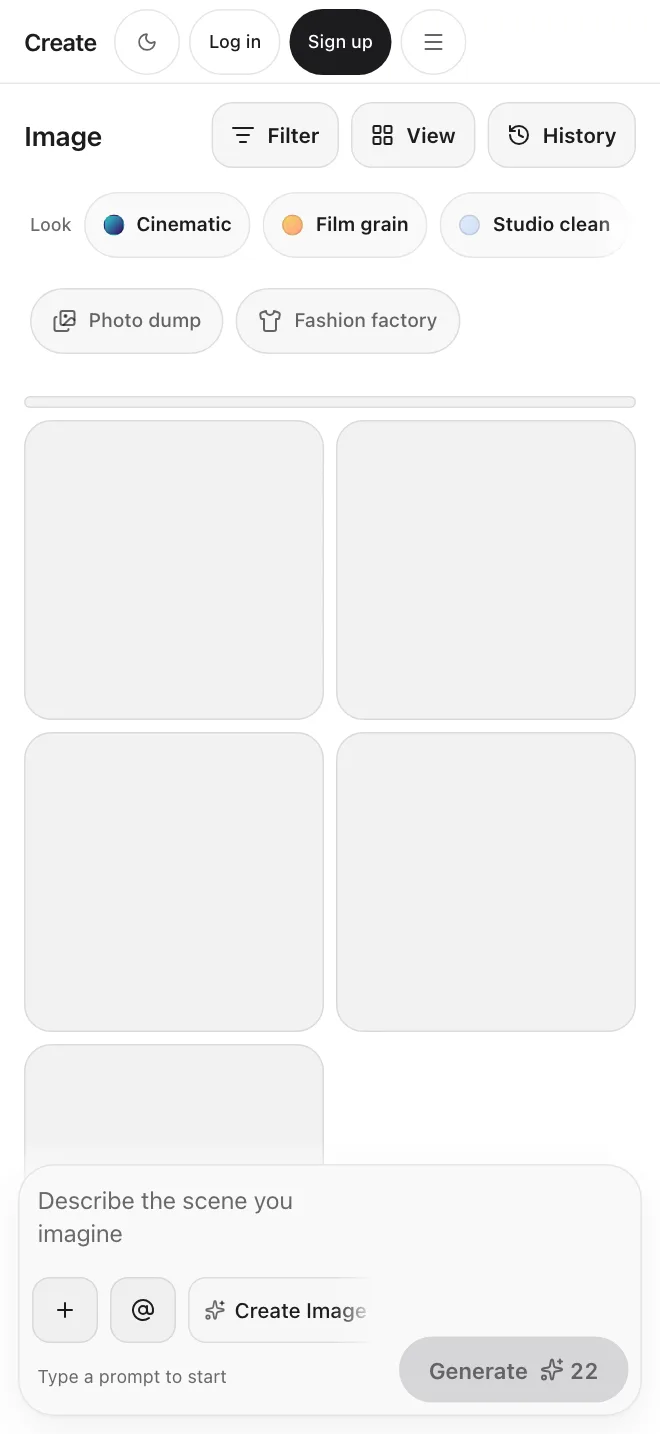
Go from idea to game art
Steer the look with a reference
Add a reference image and a few style words to your prompt to push results toward the look you want. Reuse the same ones each time to keep a game's art consistent. Create does not train a model on your style.
Three tools for game art
Make it.
Change it. Sharpen it.
One account for your art workflow
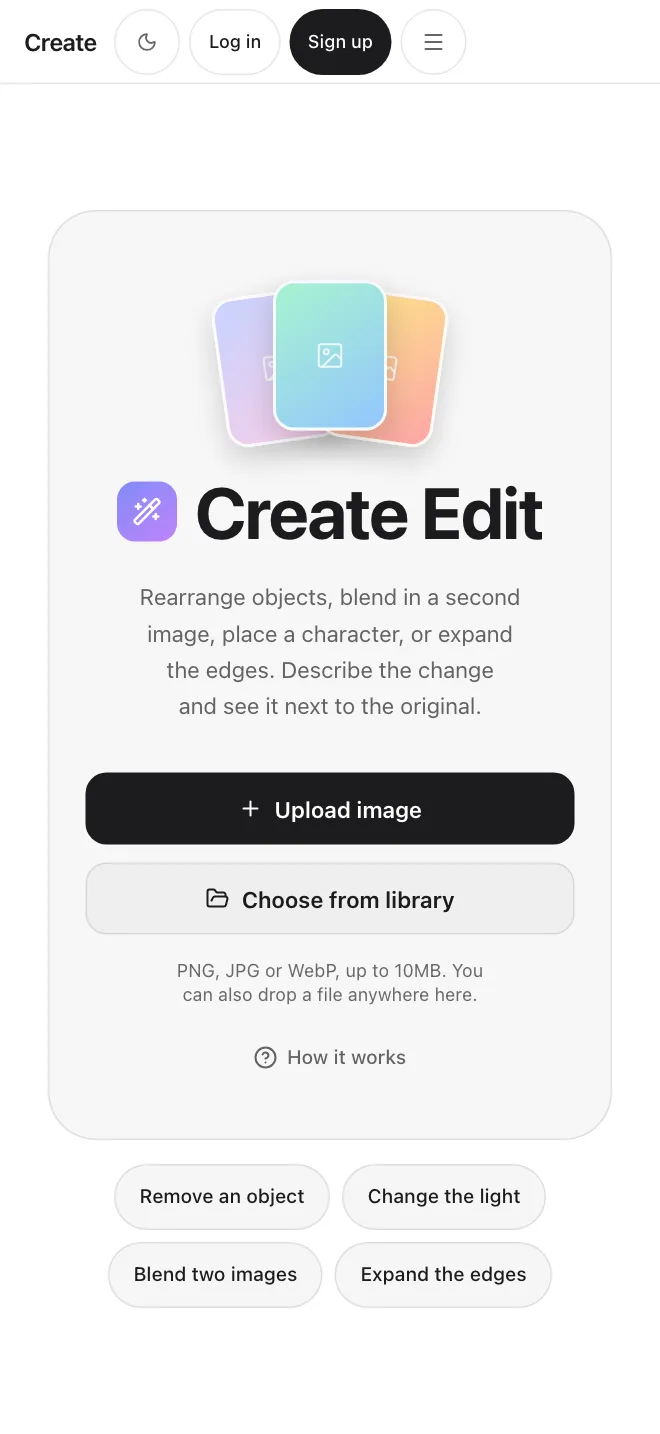
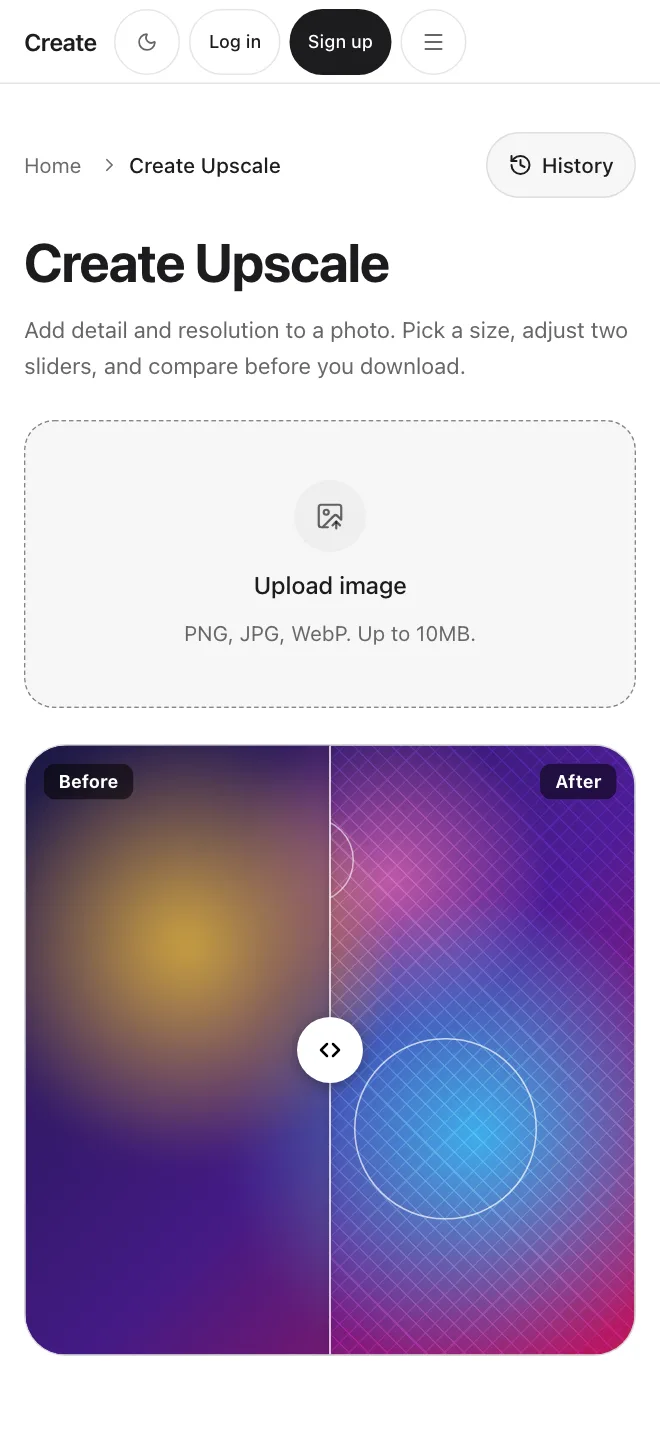
Generate a concept with Image, change it with a written instruction in Edit, then make the result larger and sharper with Upscale.
What you can do for game art
Concept art and asset variations
Generate character designs, environment concepts, and prop variations from text or a reference image. Describe a new color, costume, or weather mood to get a variation of an idea, and check each result before you use it.
Change an image with words
Edit an existing image from a written instruction, such as relight a scene, remove the background, rearrange objects, or expand the edges. Edit works from your description. There is no brush or selection tool.
Sharper images for promo use
Make screenshots and renders larger and sharper for store pages, press kits, and social posts. Upscale works on images only.
Image, Edit, and Upscale work on the same images
Get startedCreate game art from scratch
Start with Create's AI Image Generator
Generate characters, environments, concept art, and visual directions from text or reference images before refining them for your game workflow.
FAQs
Start creating.