



Set the look of every shot.
Pick a film setup, a camera move, a color palette and lighting. Describe the scene, then make an image or a short video.
Image and video models in one place
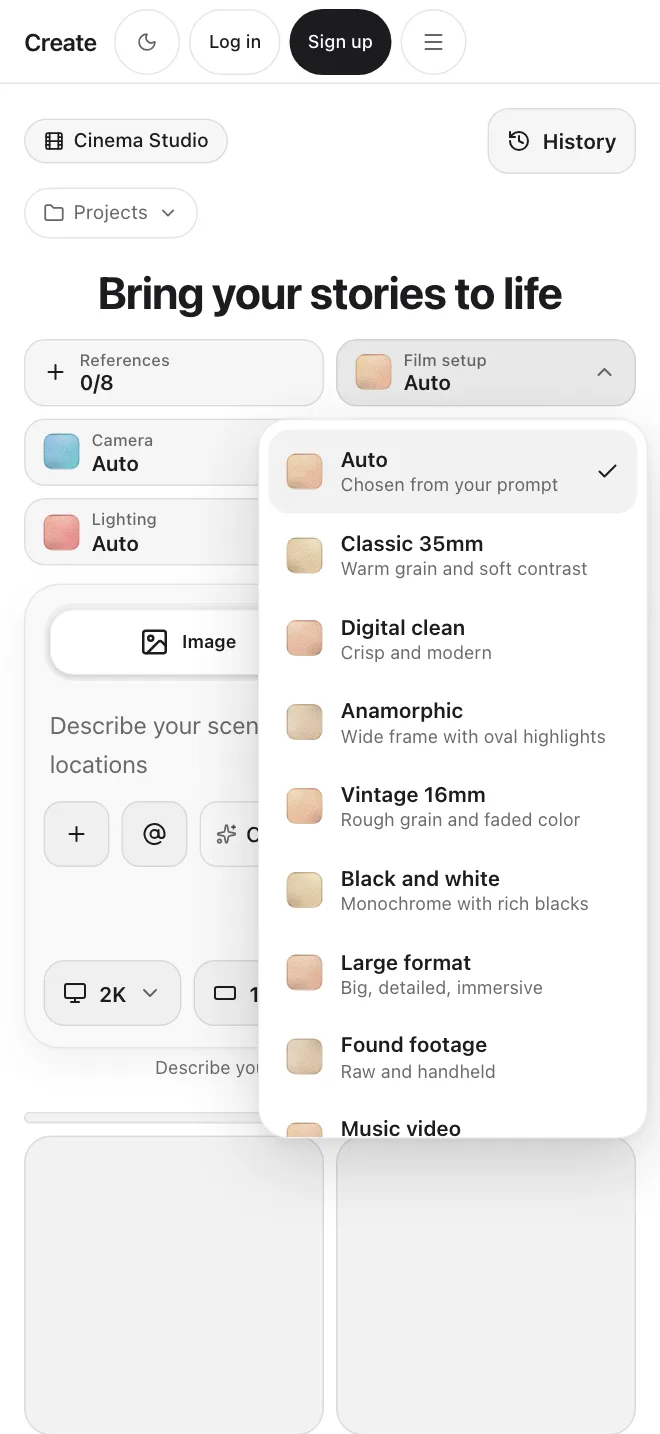
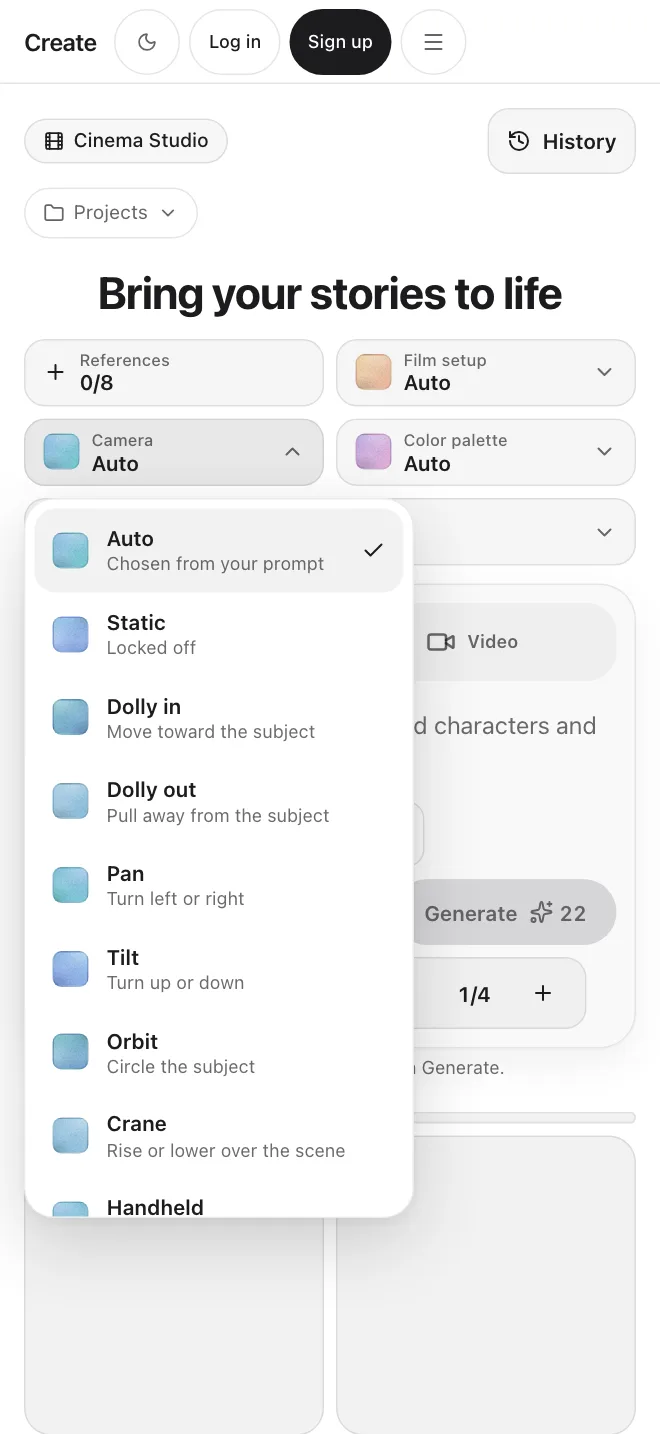
Choose the look before you generate
Pick a film setup such as Classic 35mm or Anamorphic, a camera move such as Dolly in, Orbit or Drone, a color palette and a lighting style. Each pick is added to your prompt. Leave one on Auto and the model decides from your words.
Reuse your characters and places.
Save names for your characters and locations, then type @ in the prompt to add them without retyping. Add a reference image to guide the look. The names are shortcuts for your prompt. They do not lock a face.
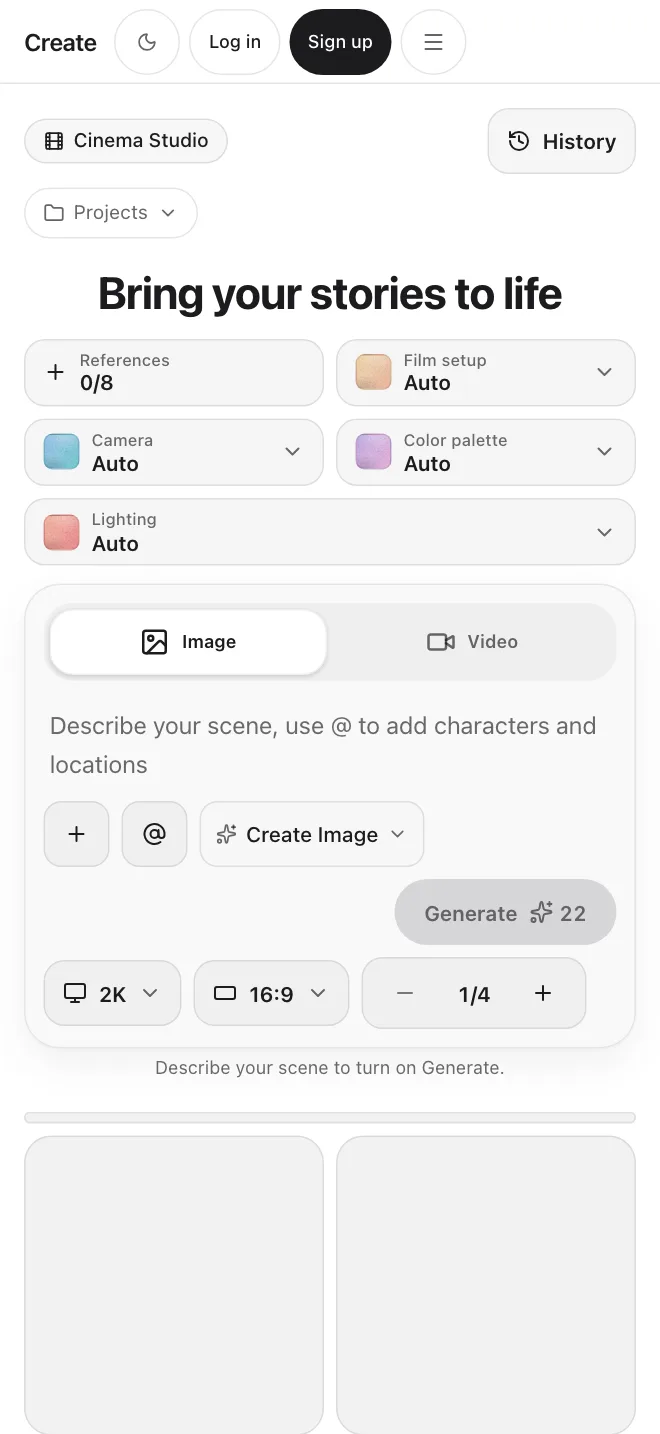
What you can set, shot by shot
Film setup, camera move, palette and lighting
Choose from short lists, such as Classic 35mm, Dolly in, Teal and orange and Golden hour. Your picks are added to the prompt. Leave one on Auto and the model decides.
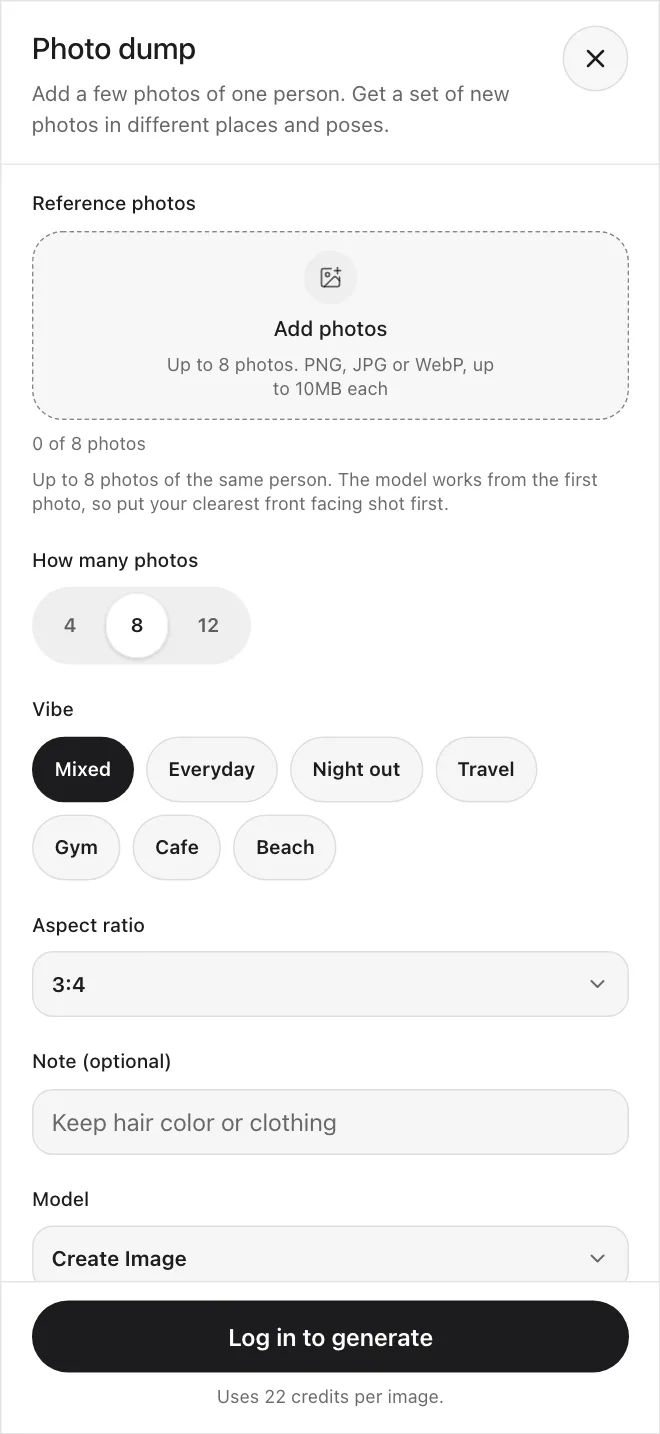
Start from a picture
Add a reference image to guide a shot, or set a start frame so a video begins from your picture. Models use one image.
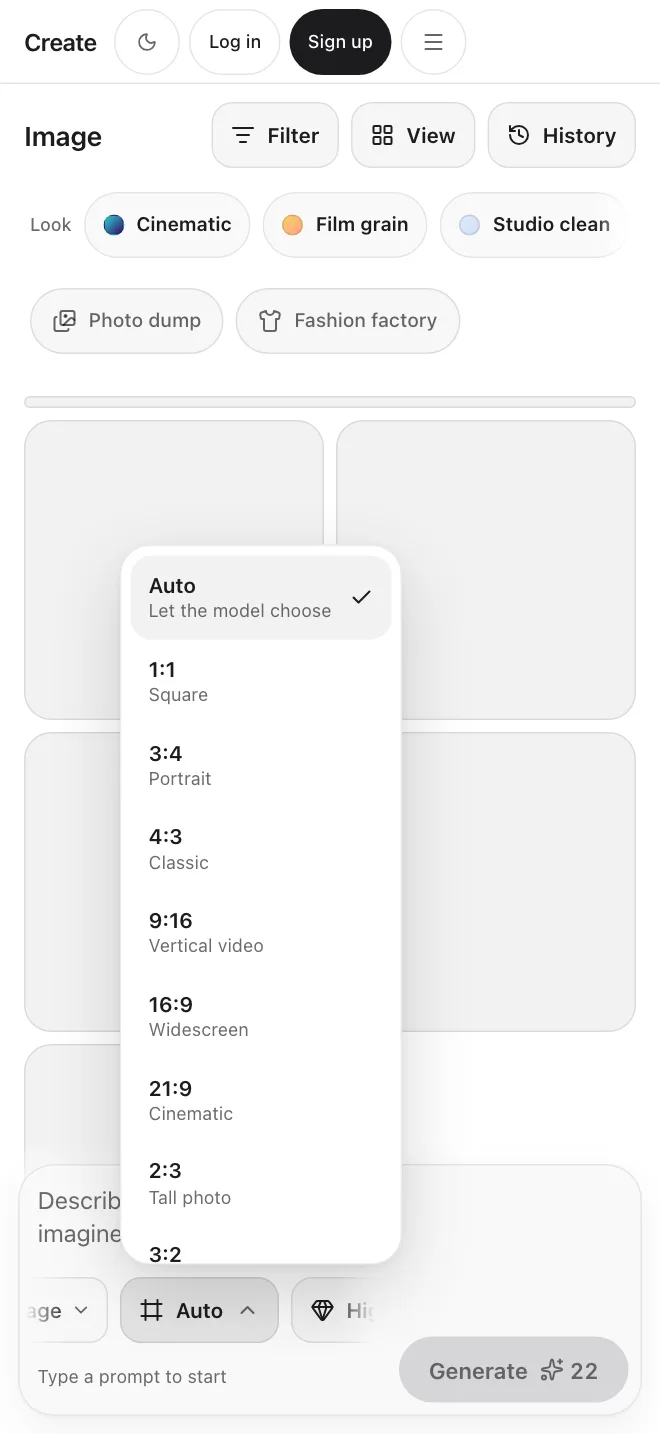
Wide frames where the model allows
Pick an aspect ratio, including 16:9, 9:16 and 21:9. Each model shows only the ratios it supports. Make one to four results at a time.
Projects and history
Group your shots in named projects and look back at earlier results in History. Projects are saved in your browser.
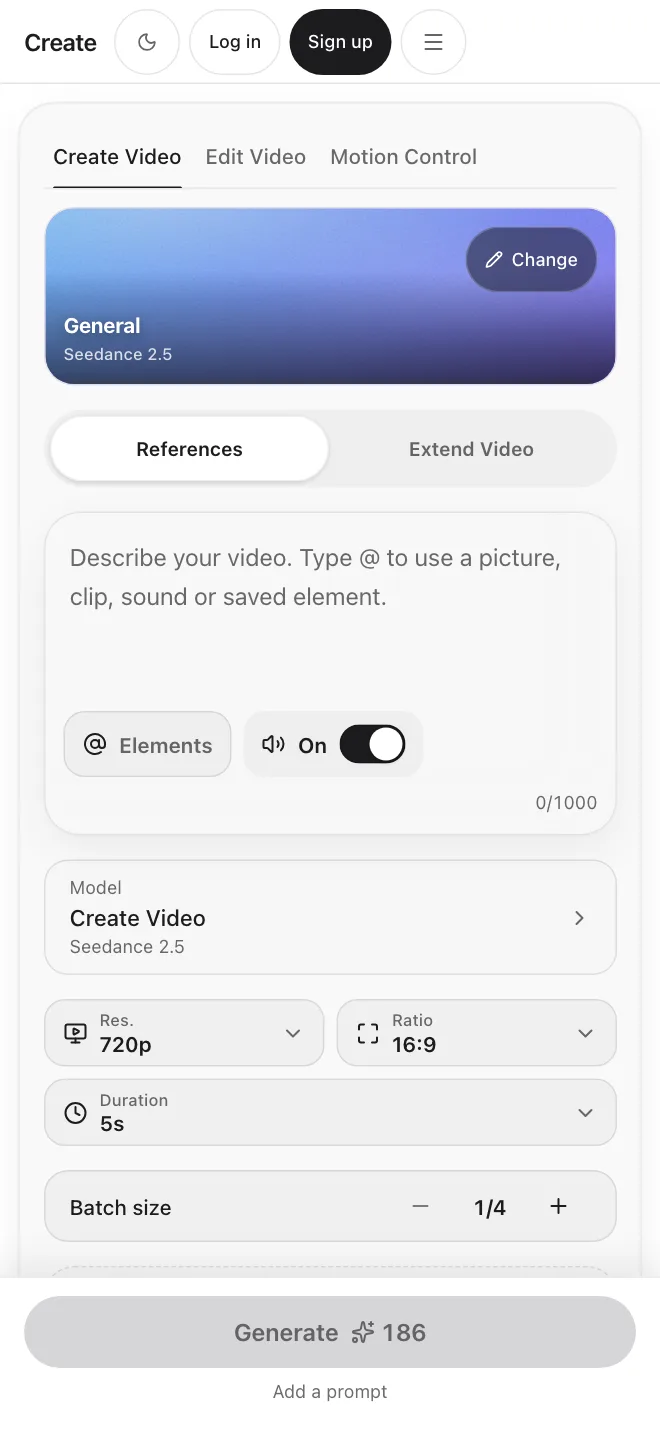
Sound on supported video models
Video models that can make sound show an Audio switch. Turn it off if you only want picture.
How Cinema Studio works
Choose the look first, then write the scene and generate.
Choose image or video
Switch between Image and Video, then pick a model from the model list.
Set the look
Pick a film setup, camera move, color palette and lighting, or leave them on Auto.
Describe your scene
Write the prompt. Type @ to add a saved character or location name. Add a reference image or start frame if you have one.
Generate
Pick the aspect ratio and how many results, from one to four. The credit cost shows on the Generate button.
Try the same shot on different models
Each model offers different lengths and ratios. Run the same prompt on a few and pick the result that fits the scene. Results land in History.
Veo 3.1
8s · 16:9 or 9:16 · audio
Seedance 2.5
5 to 15s · up to 21:9 · audio
Kling 3.0 Text to Video
5 or 10s · 16:9, 9:16, 1:1 · audio
Seedance 1.5 Pro
3 to 10s · up to 21:9 · audio
Cinema Studio for every creative workflow
Film & Storytelling
Make still frames and short clips for a scene from a prompt or a reference image.
Marketing & Ads
Turn a short brief into a clip or a still. For product-led work, Marketing Studio has templates built for it.
Content Creation
Reuse the same film setup and palette across short videos so a series feels related.
Product & Ecommerce
Try product visuals and short clips from a prompt or a photo. For listing photos, see the Ecommerce view in Marketing Studio.
What Cinema Studio gives you
Image and video together
Switch between Image and Video in the same prompt box.
Your choice of model
Pick from the image and video models. The credit cost updates as you switch.
Look settings in plain words
Film setup, camera, palette and lighting come from simple lists.
Saved names
Save character and location names, then type @ to add them to a prompt.
Projects and history
Keep shots grouped in projects and find past results in History.
One set of credits
Cinema Studio uses the same monthly credits as the rest of Create.
Choose a plan
Basic
$10/month
1,000 credits /month
Pro
$30/month
3,200 credits /month
Max
$80/month
9,000 credits /month
Explore other features
One project, many shots
Make a project for each film or campaign and keep its shots together. Projects are saved in your browser.
Get startedFrequently Asked Questions
Start creating.